Blog/How to Bulk Crop Mixed-Size Images to the Same Ratio
How to Bulk Crop Mixed-Size Images to the Same Ratio
A landscape photo and a portrait photo can both become squares without becoming the same number of pixels. That distinction matters when preparing a catalog, a team gallery, or a set of thumbnails.
This workflow uses the bulk image cropper: choose one aspect ratio, adjust each subject, review the output list, and download a ZIP. Images are processed locally. There is no automatic subject detection, background removal, or cloud editing history.
Workflow and examples updated September 20, 2026. Original publication: June 16, 2026.
Same Ratio or Same Pixel Dimensions?
Aspect ratio describes shape: 1:1 is square, 4:5 is portrait, and 16:9 is landscape. Pixel dimensions describe the actual width and height of a file.
The general bulk tool exports the selected crop at its source resolution. Selecting 1:1 does not resize every file to 1080 by 1080. Check ZIP contents for each output's actual dimensions before downloading.
| Requirement | Appropriate workflow |
|---|---|
| Many originals, one shared shape | Bulk crop images, with individual adjustments |
| One image at exact width and height | Crop and resize |
| Training images at an available fixed-size preset | LoRA image cropper; check the selected preset |
| One image in several publishing formats | Creator export pack |
A Reproducible Mixed-Size Example
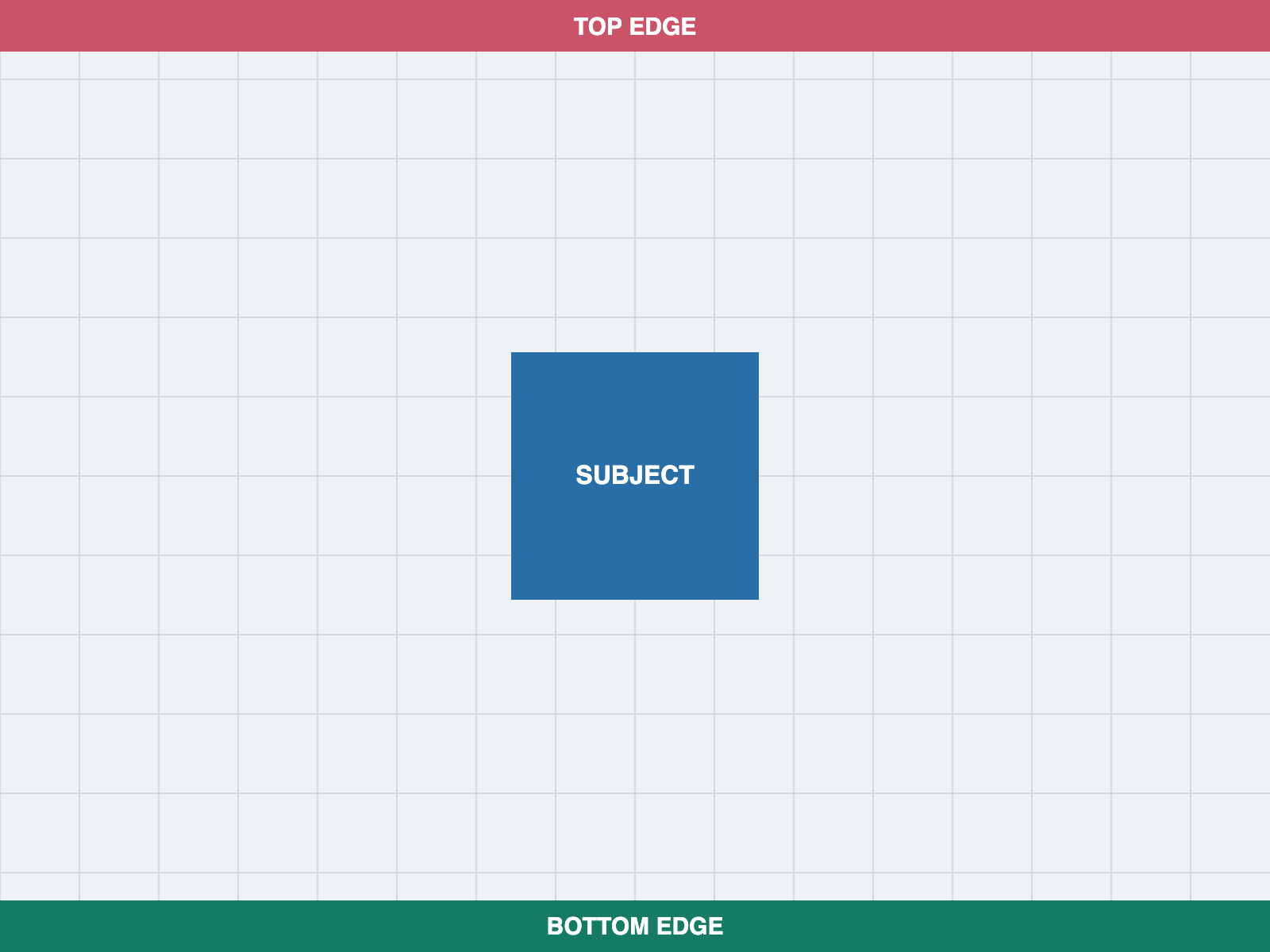
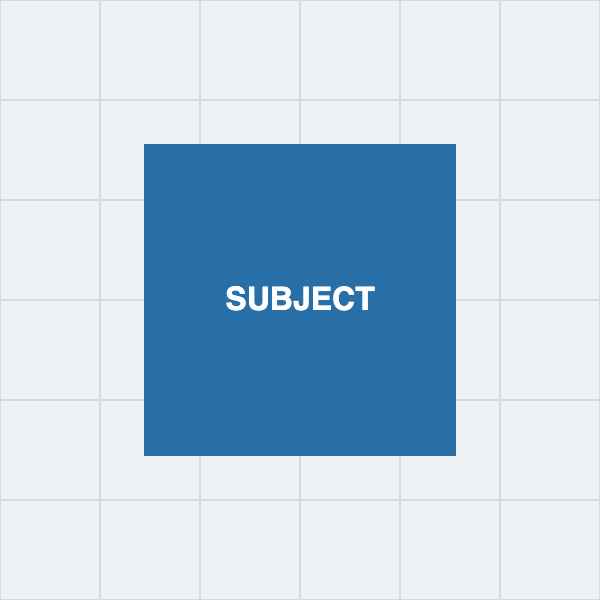
These are test graphics, not customer photographs. Their edge markers make removed areas easy to see. The outputs are actual PNG files exported by the bulk editor with 1:1 selected, using its centered starting crops.
| Source | Original dimensions | Actual PNG output |
|---|---|---|
| Landscape | 1600 by 1200 | 600 by 600 |
| Portrait | 900 by 1600 | 450 by 450 |
Landscape Source and Export
Portrait Source and Export
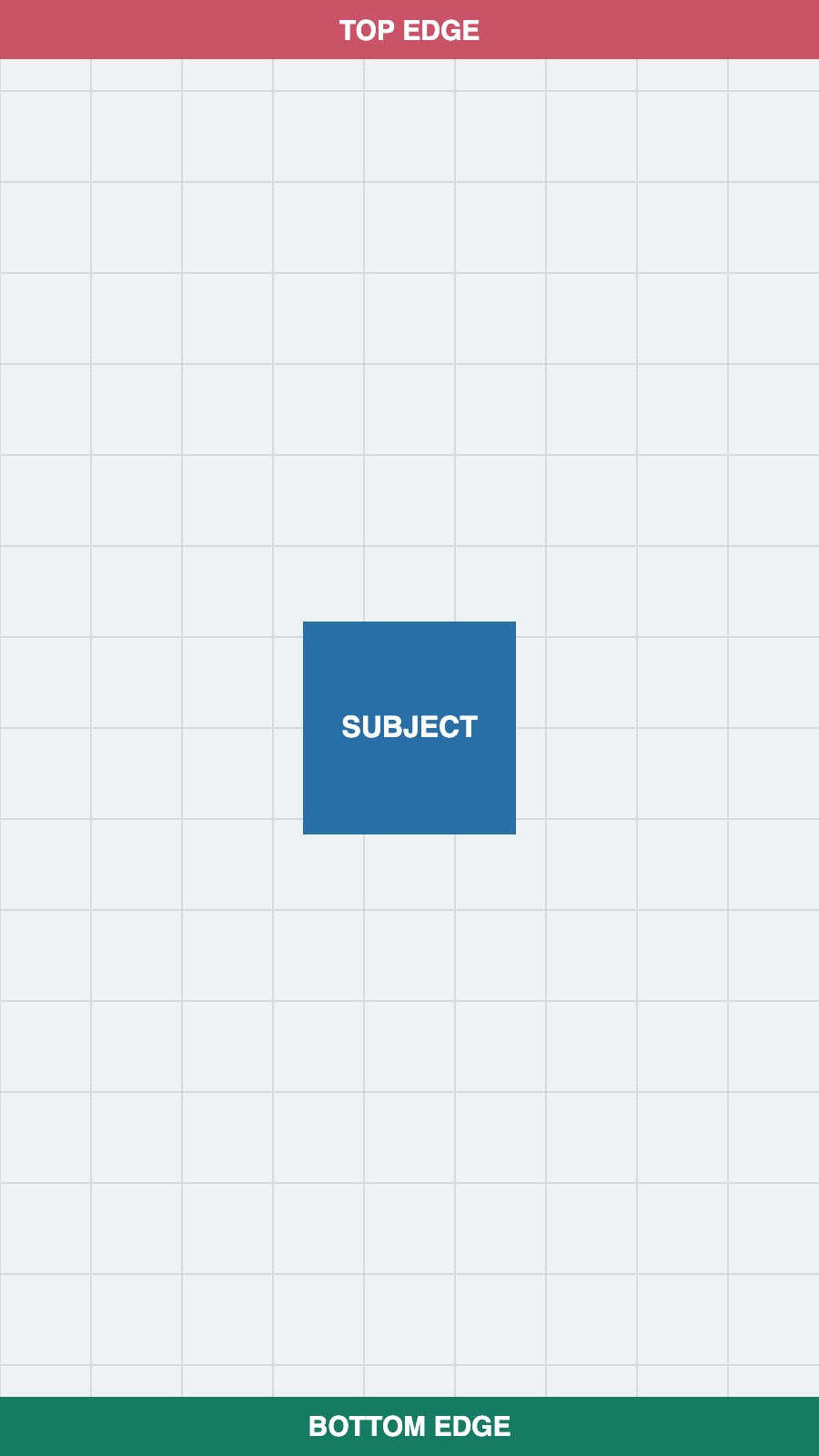
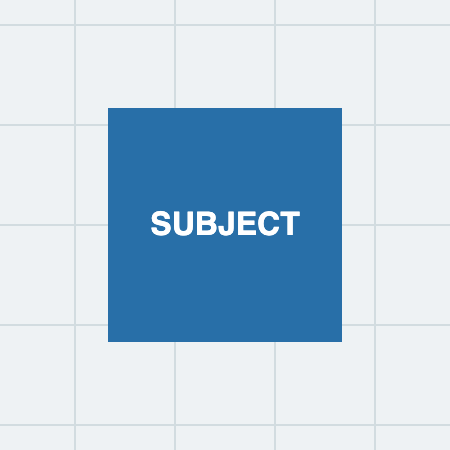
Download the landscape source and portrait source, then open the bulk cropper to reproduce the results. Resizing or moving a selection can change the output size or framing; the output list updates accordingly.
Step 1: Load a Manageable Batch
Start with a few originals, especially on a phone. Decoded images can occupy much more memory than compressed files. There is no guaranteed safe batch count for every device.
Use Add to append images without replacing the current batch. Keep the tab open: crops are not saved as a persistent project. Unsupported or damaged files may fail to load; the editor reports the number that could not be opened.
Step 2: Select a Ratio and Frame Each Subject
Choose 1:1, 4:5, or another required shape. A ratio creates a starting crop for each image. Auto crop means an initial crop exists, not that a person or product was detected. Adjusted means the crop was changed manually.
Select each thumbnail, move the crop over the subject, and resize if needed. Switching thumbnails keeps each image's selection. Leave room around faces, handles, or text. Always work from the original rather than repeatedly cropping exported files.
Step 3: Copy Framing Only When It Fits
Apply This Crop to All Images transfers relative center and relative crop size while preserving the pixel aspect ratio across source orientations. Near an edge, the selection is clamped inside the image. It does not find the subject in the next file.
Use this for similarly composed images. Adjust off-center subjects separately afterward. Copying to all or changing the ratio replaces existing selections; do those operations before the final individual pass. Selecting the already active ratio leaves adjustments in place.
Step 4: Review What the ZIP Will Contain
ZIP contents shows filenames and pixel sizes. Images without a valid crop are marked Not cropped and excluded. Check the count before downloading.
By default, photo.jpg becomes photo-cropped.png for PNG output. Matching names receive suffixes such as photo-cropped-2.png, so both survive in the archive. An optional prefix produces names such as catalog-01.png. Numbering follows batch order, including when retrying a subset.
Choose PNG for lossless output encoding and transparency. JPG and WebP use the quality setting and may alter fine detail. Canvas export creates a new file: local processing does not guarantee unchanged metadata, color profiles, or identical source pixels.
Step 5: Download and Recover From Failures
Open the ZIP and inspect a few files at actual size. Verify the subject and dimensions against the output list.
If individual images fail, successful files are still included. Failed source names remain visible with Retry failed images, keeping your crops. The retry creates a separate ZIP for that subset. If ZIP creation fails, the batch remains available; retry or start a smaller batch if memory is exhausted. A closed tab cannot recover an unsaved session.
Common Questions
Will all square images have identical dimensions?
No. A 600 by 600 crop and a 450 by 450 crop share a ratio. Exact dimensions require a fixed-size preset or a resize step. The generic bulk page does not have custom width and height inputs.
Will cropping make a low-resolution image sharper?
No. Cropping discards surrounding pixels. Enlarging the remainder cannot recreate detail. Keep more of the original when possible, or use a higher-resolution source.
Can I keep animations?
This is a still-image workflow. GIF input does not produce an animated cropped output. Outputs are PNG, JPG, or WebP still images.
Can I reuse one crop for every platform?
Different shapes often need different framing. Keep the original and use the creator export pack for several outputs from one source. Platform requirements can change; the image sizes guide separates example canvases from sourced specifications.
Are image bytes or filenames sent to analytics?
Processing stays in the browser. Editor analytics describe actions such as image counts, format, and success or failure, not image bytes or source filenames. See the privacy policy for site analytics details.